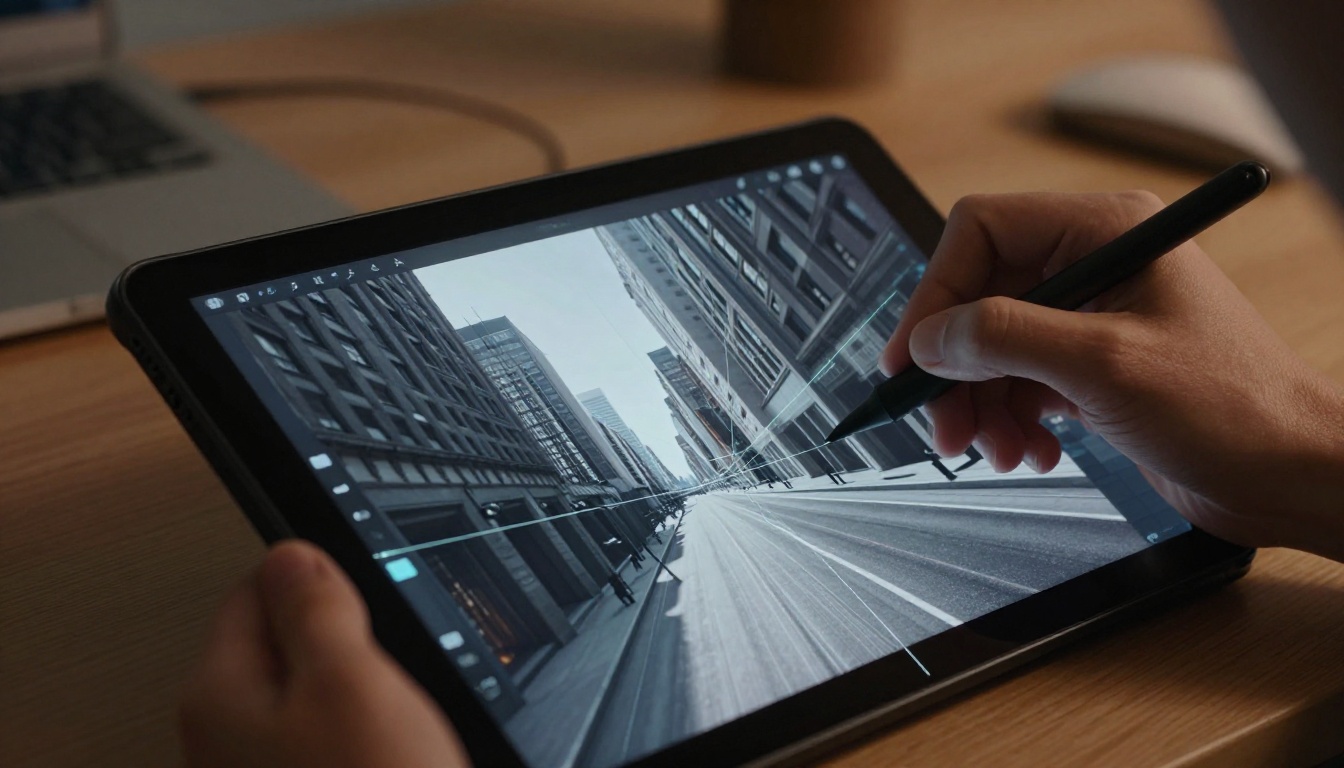
Imagine sketching a city street on your tablet. Buildings lean wrong. Lines refuse to meet. Your scene falls flat. You wipe the screen again.
Perspective grids fix that mess. These overlays in digital apps guide your lines to vanishing points. They mimic real depth. You draw faster. Results look pro. No need for years of practice.
You’ll cover three types here: 1-point for straight views like hallways, 2-point for angled streets, and 3-point for tall towers. Apps like Procreate, Photoshop, and Clip Studio Paint make it simple. First, learn the basics. Then set up grids. Next, follow step-by-step draws. Finally, grab tips to avoid pitfalls. Ready to add depth to your art?
Break Down the Three Types of Perspective Grids
Perspective grids help lines converge right. They snap your strokes to create realism. Choose the type based on your view.
Each grid matches a scene’s angle. Apps display them faintly over your canvas. You build shapes along those guides. Confidence grows quick.
Here’s a quick comparison:
| Grid Type | Vanishing Points | Best For | Everyday Example |
|---|---|---|---|
| 1-Point | One on horizon | Straight-on scenes | Train tracks or rooms |
| 2-Point | Two on horizon | Side angles | Corner buildings |
| 3-Point | Two on horizon, one vertical | Extreme up/down | Skyscrapers from street |
This table shows key differences. Pick one, and your art snaps into place.
1-Point Perspective: Straight-On Views Made Simple
Use 1-point for front-facing scenes. One vanishing point sits on the horizon line. All lines rush toward it.
Think of a long hallway. Walls narrow to that center spot. Roads do the same.
In digital apps, the grid radiates from the point. Like spokes on a wheel. Draw boxes first. They stack neat.
Roads or interiors shine here. You finish fast. Lines stay true.
2-Point Perspective: Capture Side Angles with Ease
Turn to 2-point for corners. Two vanishing points mark the horizon ends. Vertical lines stay straight.
Picture a boxy building from the side. Edges slant to each point.
Grids form angled boxes. Perfect for streets or tables.
City blocks pop with this. Furniture angles right. Depth feels real.
3-Point Perspective: Add Height and Drama to Scenes
Go 3-point for drama. Add a third point high or low. Horizon holds two. Verticals converge off it.
Look up at towers. Lines bend dramatic.
Grids curve those tall shapes. Bridges from below work too.
It’s trickier. Yet grids ease it for beginners. Scenes tower alive.
Set Up Perspective Grids Fast in Your Go-To Digital Apps
Apps hide grids in menus. Enable them once. Customize for your style.
Tweak color and fade. Set snap strength. Draw flows smooth.
iPad users love touch tweaks. Desktop offers precision. Free tools like Krita join paid ones.
Spend less time setup. More on creation.
Procreate: Tap to Guide Your iPad Masterpieces
Open Procreate. Swipe with two fingers for gestures. Tap “Drawing Assist.”
Choose perspective guide. Pick 1, 2, or 3-point.
Adjust cells for density. Elbow sets curve. Extend arms long.
Drag to rotate. Opacity fades as needed. iPad tilt snaps lines.
Test on new canvas. Lines hug grid perfect.
Photoshop: Precision Grids for Pro Results
Launch Photoshop. Go View > Show > Perspective Grid.
Panel pops up. Pick type: 1, 2, or 3-point.
Set origin. Drag points. Colors match layers.
Use Transform tool. Warp snaps to grid.
Lock layers under grid. Edit free above.
Pro setups save time.
Clip Studio Paint and Krita: Freeform Flexibility
In Clip Studio, grab Perspective Ruler. Select points. Snap on.
Drag to adjust. Free or guided modes.
Krita uses Assist Tool. Draw horizon. Add points.
Both free. Quick for tests.
Clip suits comics. Krita handles big files.
Draw Stunning Scenes Step by Step with Each Grid Type
Tutorials build skills. Start simple. Trace grids first.
Each project takes minutes. Your flats turn 3D.
Try now. Pause. Sketch along.
Build a Cozy Room Using 1-Point Grids
- Set horizon mid-canvas. Place one vanishing point center.
- Draw verticals for walls. Slant sides to point.
- Add floor tiles. Lines converge neat.
- Sketch door frame. Parallel to walls.
- Place table. Legs meet point.
- Draw chairs around. Keep scale right.
- Windows on back wall. Glass lines fade.
- Add rug. Edges parallel front.
- Lamp in corner. Light rays to point.
- Shade dark near edges. Depth grows.
Room feels lived-in.
Sketch a Bustling Street in 2-Point Perspective
- Horizon across top. Two points at ends.
- Vertical for first building. Sides to points.
- Second building beside. Opposite slants.
- Windows stack even. Match heights.
- Street between. Pavement widens out.
- Cars park angled. Wheels to points.
- Streetlights tall. Poles straight.
- Signs on facades. Letters follow lines.
- People small far. Scale shrinks.
- Shadows cast long. Mood sets.
Street buzzes real.
Create a Soaring Skyscraper with 3-Point Magic
- Horizon low. Two points wide.
- Third point high above.
- Base verticals wide. Tops to third.
- Floors stack narrow. Lines converge.
- Windows grid up. Shrink with height.
- Antenna spikes top. Extreme slant.
- Clouds around base. Ground level.
- Reflections on glass. Shine dramatic.
- Street below tiny. Worm’s eye view.
- Foreground debris. Scale pops.
Tower dominates sky.
Pro Tips and Fixes for Flawless Perspective Art
Match eye level to horizon. Your view stays real.
Combine grids. Switch mid-draw for complex scenes.
Freehand after guides. Grids fade confidence.
Common fix: Wonky lines? Rotate grid slight.
Ignore scale? Measure with pick tool.
Too many points confuse. Stick to one type first.
Eye level tip: Stand height for streets. Low for drama.
Practice traces. Then originals.
Curved grids for fish-eye. Multi for cities.
Challenge: Redraw photo with 2-point. Share results.
Errors drop fast.
Master grids, and flats vanish. Your digital art gains life quick. Basics stick now. Setups ready in apps.
Grab tablet. Try one tutorial today.
Post your room or street below. What app do you use? Subscribe for shading guides next.
Depth waits. Draw now.