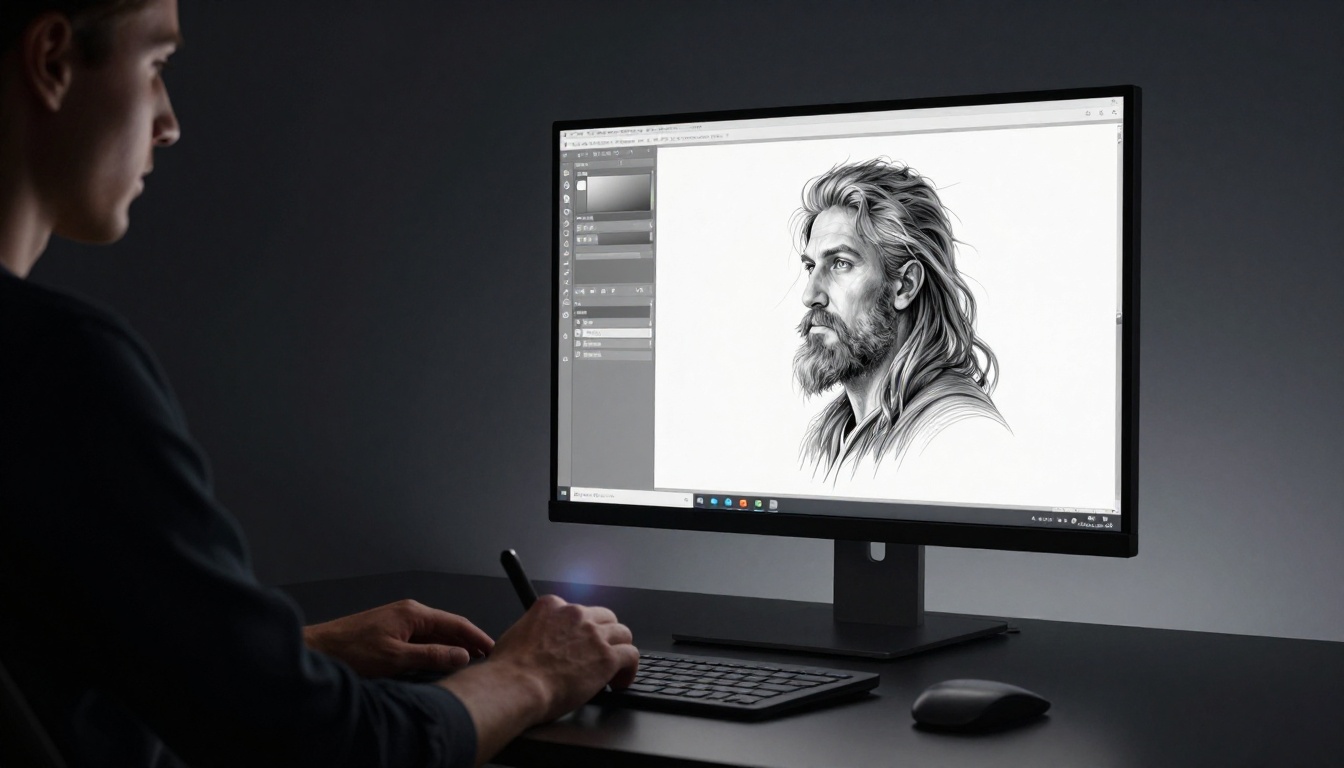
Tired of spending hours painting every detail on your grayscale sketches? You draw a killer black-and-white piece, but adding color feels like a slog. Gradient maps fix that fast. They swap your shades of gray for vibrant hues based on light and dark tones alone.
This trick reads the brightness in your art. Dark areas grab deep colors. Bright spots pull light ones. No need to select every shape. You get pro results in seconds, perfect for beginners or pros rushing concepts.
You’ll see simple steps ahead: prep your base, build gradients, apply them, and tweak for depth. Software like Photoshop, GIMP, or Krita handles it all. Let’s turn your grayscale art into full color magic right now.
Unlock the Magic: How Gradient Maps Turn Shades of Gray into Stunning Colors
Gradient maps work like a smart filter. Your software scans grayscale values from black to white. It then overlays a color ramp you choose. Blacks turn to your darkest hue. Whites shift to the lightest.
Picture this: you dip a grayscale photo into a bucket of rainbow paint. The paint sticks stronger to shadows and fades on highlights. That’s gradient maps in action. They keep your original shading intact while flooding in color.
Benefits pile up quick. You save time over manual fills. Edits stay easy because changes don’t bake into the pixels. Switch styles on the fly for moody illustrations or sunny scenes. It shines in Photoshop with pro tools. GIMP and Krita offer free power too. Fill layers or bucket tools fall short here. They ignore tones and create flat results.
The Simple Process Behind Luminance Mapping
Grayscale pixels hold values from 0 (black) to 255 (white). Gradient maps link these to color stops. Set black at deep blue. Mid-grays land on teal. Whites glow yellow.
This luminance mapping stays non-destructive. Tweak the gradient anytime without losing your base art. You control flow with smooth blends or sharp jumps.
Here’s a quick value match example:
| Grayscale Value | Sample Color Stop |
|---|---|
| 0 (Black) | Deep purple |
| 128 (Mid-gray) | Vibrant green |
| 255 (White) | Bright yellow |
See how tones drive the palette? This setup ensures harmony every time.
Why This Beats Old-School Coloring Methods
Manual coloring drags on. You block shadows, mids, lights per object. Gradient maps skip that grind. They deliver perfect tonal matches across the whole piece.
Scale up for prints without worry. Colors hold strong at any size. Concept artists love it for quick pitches. Illustrators use it for book covers. Even photos gain stylized pops.
Time savings hit hardest. One map colors a full scene in under a minute. Old fills demand hours and constant fixes.
Prep Your Grayscale Artwork So Colors Hit Just Right
Strong prep makes or breaks your colors. High contrast gives lively results. Weak values lead to muddy flats. Start with clean lines and bold lights, darks, mids.
Scan traditional sketches at 300 DPI. Or draw digital with hard brushes. Push shadows deeper. Brighten highlights. Define those mids for balance.
Line art needs thickness if fuzzy. Desaturate any stray colors first. Levels or curves stretch the range. You’ll boost pop later.
Readers often skip this. Don’t. Solid prep pays off big.
Pick or Sketch the Perfect Grayscale Base
Aim for a wide value range. Deep shadows avoid boring sludge. Bright skies in landscapes add spark. Portraits with strong jaw shadows draw eyes.
Test fast: slap a solid color overlay at 50% opacity. If tones shine through, you’re set. Dull? Redraw or adjust.
Examples work best. A dragon sketch with fiery breath whites and cave blacks sings under gradients. Flat faces flop.
Quick Fixes to Sharpen Contrast and Clarity
Open levels tool first. Drag black slider right to crush weak darks. Pull white left for crisp lights. Tweak midtone gamma up or down.
In Photoshop, hit Ctrl+L (Cmd+L on Mac). GIMP uses Colors > Levels. Before: flat gray soup. After: punchy values ready for color.
Curves offer finer control. Pull an S-curve for drama. Free tools match this power. Your art now grabs gradients tight.

Boosted grayscale base ready for gradient mapping.
Craft a Custom Gradient Map That Matches Your Style
Pick 3 to 7 colors from dark to light. Harmonious picks blend smooth. Complementary pairs add drama, like blue-orange. Analogous stay calm, such as green-blue.
Photoshop’s editor shines. Start with presets. Then customize. Sample from photos or mood boards. Save for reuse across projects.
Flow matters. Dark end suits shadows. Light fits highlights. Test on a duplicate layer first.
Choose Colors That Blend and Sparkle Together
Build palettes with intent. Fiery sunset: red to orange to yellow. Cool night: navy to purple to pink.
Tools like Adobe Color spark ideas. Grab hex codes. Test on a small art patch. Does it vibe? Adjust saturation down for subtlety.
Your style dictates. Comic art loves bold jumps. Realism favors smooth ramps.
Build and Save Your Dream Gradient Step by Step
- Open Gradient Editor in Photoshop (under adjustment layers).
- Click below preview to add stops.
- Double-click a stop. Pick color with eyedropper or sliders.
- Drag stops for position. Midpoint icons control blends.
- Choose smooth for soft, hard for edges.
- Name and save as custom.
Export PNG for GIMP or Krita. Reuse on future art. Experiment freely.
Apply Gradient Maps in Seconds for Jaw-Dropping Results
Duplicate your grayscale layer. Add a Gradient Map adjustment. Load your custom ramp. Clip it to the base. Done.
Use Color blend mode if harsh. Mask edges for control. Undo stays simple.
Photoshop leads, but free apps keep pace. Troubleshoot flats by checking contrast first.
Photoshop Steps to Colorize Like a Pro
- Layer panel: New Fill/Adjustment Layer > Gradient Map.
- Pick preset or load custom. Hit OK.
- Right-click layer. Create Clipping Mask.
- Try Overlay blend if needed. Dial opacity to 70-100%.
Watch grayscale flip to full color. Non-destructive tweaks rule.
Easy Alternatives in Free Tools Like GIMP and Krita
GIMP: Right-click layer > Colors > Map > Gradient Map. Select your saved gradient.
Krita: Layer > Filter Mask > Gradient Map. Assign colors.
Both mimic Photoshop power at zero cost. Results stun just as hard.
Fine-Tune and Layer for Pro-Level Depth and Glow
Layer multiple maps for depth. Base one sets mood. Overlay adds highlights. Soft Light blends punch in.
Hue/Saturation shifts the whole vibe. Masks let you paint originals back. Lower opacity softens. Curves on the map tweak values.
Build realism without grinding details.
Stack Maps and Blends for Rich, Lifelike Tones
Base: cool blue-purple gradient. Overlay: warm yellow-orange at 40% Soft Light for rims.
Group layers. Name them “Base Map,” “Highlight Map.” Scale for scenes or singles.
This stacks depth fast. Single maps feel flat by comparison.
Dodge the Top Mistakes That Dull Your Colors
Low contrast kills pop. Fix prep. Wrong blend? Switch to Normal or Color.
Over-saturated? Add desat adjustment. Test small. Save versions.
Quick checks save hours.
Gradient maps speed your workflow from grayscale art to full color. Prep strong bases. Craft fitting ramps. Apply, stack, tweak. You grab pro looks in minutes.
Fire up your software now. Try it on that sketch. Share results in comments. Post your before-afters on social. Subscribe for more hacks.
Endless styles wait. Your next masterpiece starts with one map.