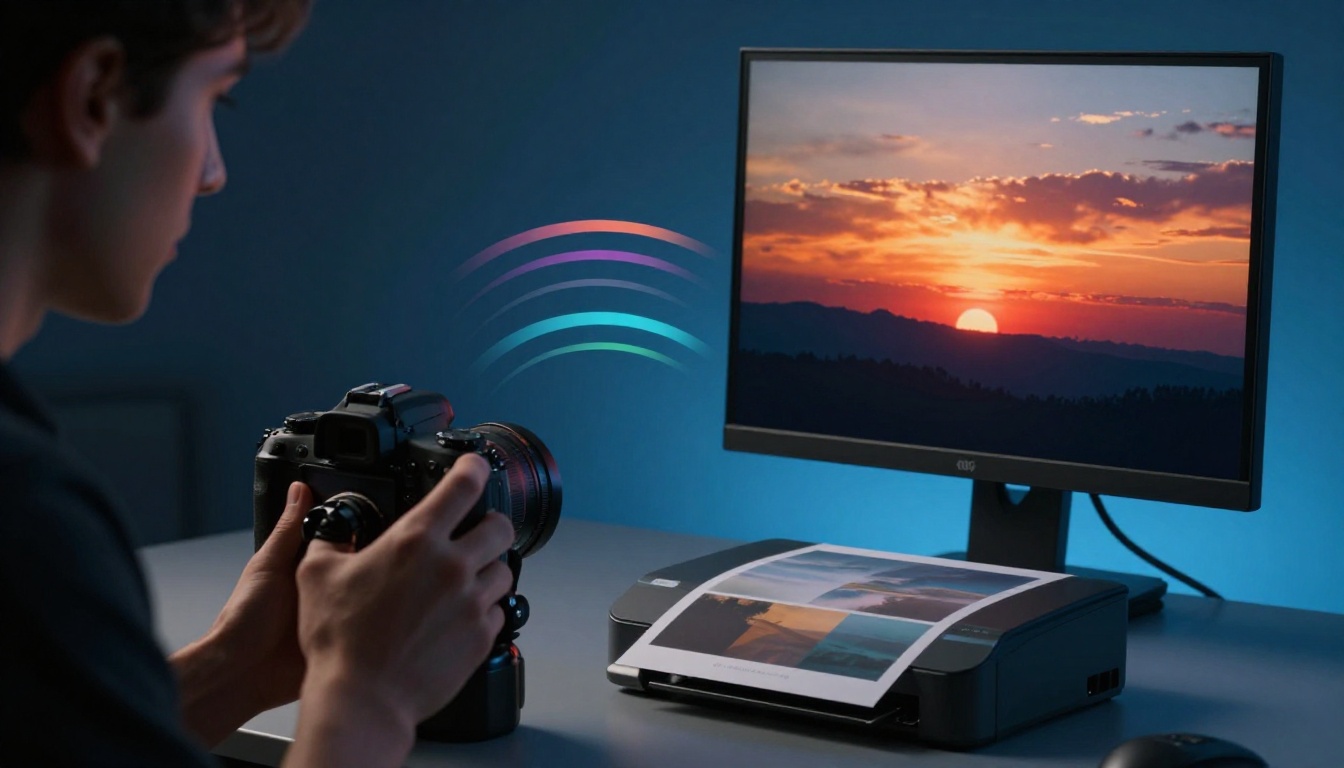
You poured your heart into that stunning sunset photo. The oranges blazed, purples glowed deep on your screen. But when the prints arrived, colors looked flat and lifeless, like someone hit the mute button.
That frustration hits hobbyist photographers, graphic designers, and anyone tweaking images all the time. Your display shows vivid hues your printer or web just can’t match. The culprit? Color gamut limits. Devices handle different color ranges, so some shades fall out-of-gamut and get swapped for dull substitutes.
Don’t worry. This beginner’s guide to color gamut for beginners fixes that mess. You’ll grasp the basics fast, spot out-of-gamut colors with simple checks, and correct them using free tools like Photoshop previews or online gamut checkers. No pricey software needed.
We keep it straightforward with real examples from photo editing and printing. Imagine editing a flower photo where reds pop perfectly everywhere. You’ll get there, frustration-free, whether you design logos, edit family pics, or prep prints.
First, we break down what color gamut means and why it trips you up. Next, you learn easy ways to identify out-of-gamut warnings. Then, we cover quick fixes and best workflows. Finally, tips keep your colors consistent across screens and paper. Ready to make your work shine? Let’s dive in.
What Is a Color Gamut in Simple Terms?
Think of color gamut as the total range of colors your device, printer, or file can handle. It’s like the size of a crayon box. A small box on your phone screen misses those super-bright reds in a sunset photo. A big box on pro monitors captures them all.
Beginners often mix this up because they edit in one color space, then view on another. Your wide-gamut edit looks great on your screen. But it clips on a basic web browser, turning vibrant greens dull. That’s out-of-gamut colors at work. Devices swap them for the closest match they can show.
In short, gamut sets the color palette limits. Small gamuts fit everyday use, like web and phones. Wide gamuts suit print or video pros. Pick the right one, and your images stay true everywhere. Now, let’s unpack the basics.
Color Spaces: The Foundation of Gamuts
Color spaces map out colors in a 3D model. Picture a bubble filled with every hue humans can see. That bubble holds reds, blues, greens, and all shades in between.
Experts use CIE Lab as the universal reference. It charts the full visible spectrum, like a master bubble. Device gamuts sit inside it as smaller bubbles. No device covers the whole thing yet.
For example, sRGB fills about 70% of that master bubble. It works great for beginners because most screens and the web use it. Imagine a diagram: a big clear sphere for CIE Lab, with a smaller sRGB blob inside, missing deep cyans and bright yellows.
Your phone or laptop likely sticks to sRGB. That’s why photos look consistent online. But pro printers reach further, so they need bigger bubbles. Stick to sRGB first. It avoids surprises.
sRGB vs Adobe RGB vs Others: Which to Pick?
Different color spaces offer various gamut sizes. You pick based on your goal: web, print, or video. Here’s a quick comparison to scan.
| Color Space | Best For | Gamut Size (vs Visible Colors) | Pros | Cons |
|---|---|---|---|---|
| sRGB | Web, phones, basic screens | ~70% | Universal fit; no clipping online | Misses rich print colors |
| Adobe RGB | Print, photography | ~90% | Wider greens/reds for pros | Clips on web; needs conversion |
| DCI-P3 | TVs, movies, modern displays | ~85% | Vivid for video; Apple/HDR | Not for legacy printers |
| ProPhoto RGB | Max editing range | ~95%+ | Captures almost everything | Huge files; easy over-editing |
sRGB stays safe for most work. Everyone sees it the same. Adobe RGB expands for photographers because it grabs extra greens in landscapes. But post that Adobe photo to Instagram. It looks washed out on desktops using sRGB.
DCI-P3 shines on new TVs. Colors pop in movies. ProPhoto gives editors room to tweak without loss early on. Convert to sRGB before final output, though.
Start with sRGB. Test on target devices. That way, your sunset keeps its fire across phones, prints, and posts.
Spotting Out-of-Gamut Colors Before They Ruin Your Work
Out-of-gamut colors happen when your target device cannot reproduce certain shades. Software then swaps them for the closest match it can handle. That often means duller versions, like a bright lime turning into a muddy green.
You edit in a wide space such as Adobe RGB. Then you output to sRGB for the web. Colors outside sRGB’s range clip. For example, those vivid blues shift to purple-ish tones. Your image loses punch as a result.
Spot these issues early. You save time and avoid reprint costs. Plus, your work looks consistent everywhere. Software tools make it easy first. Then check by eye for quick tests.
Gamut Warnings: Your Software’s Best Friend
Most editing apps flag out-of-gamut colors right away. They highlight problem spots so you fix them before export. Photoshop leads the pack, but free options work too.
In Photoshop, start with these steps:
- Open your image and go to Edit > Assign Profile. Pick your working space, like Adobe RGB.
- Then select View > Proof Setup > Working CMYK or Internet Standard RGB (sRGB). Match your output goal.
- Toggle View > Gamut Warning. Gray or pink overlays mark out-of-gamut areas. Pink often shows on Windows; gray on Mac.
Adjust sliders until the warning fades. Lightroom does similar. Go to Develop module > Soft Proofing. Check the warning box for your target profile. Colors outside glow bright.
GIMP offers a free check. Open your file, then pick Colors > Gamut Check. It shades impossible hues in a mask. Toggle profiles in Image > Color Management.
These previews act like a safety net. You catch clips before they hit print or post.
Visual Signs of Out-of-Gamut Trouble
Skip software sometimes. Look for clues in real viewing. Colors shift across devices if out-of-gamut.
Your monitor shows neon pinks that fade on your phone. That’s a classic sign. Prints come back muted compared to screen vibrancy. Greens look flat; reds wash out.
Test at home without gear. View the image on a calibrated display next to an uncalibrated one. Open the same file in a basic browser like Chrome on sRGB mode. Compare to your editor.
Shoot a quick export to JPEG in sRGB. Email it to your phone. If hues change, gamut mismatch struck. Neon signs or flower petals often reveal it first because they push boundaries.
These checks confirm software flags. You build confidence over time. Your edits stay true across screens and paper.
Easy Ways to Identify and Fix Out-of-Gamut Colors
You spot those warnings now. Next, fix them fast. These methods work in Photoshop or free tools. You adjust colors without losing vibrancy. Start narrow with sRGB. That prevents most issues from the get-go.
Step-by-Step in Photoshop or Free Alternatives
Open your image in Photoshop first. Go to Edit > Assign Profile and select sRGB. This sets your working space right.
Next, pick View > Proof Setup > Internet Standard RGB (sRGB) for web work. Or choose Working CMYK for prints. Then turn on View > Gamut Warning. Problem areas glow in gray or pink. You see exactly where colors clip.
Adjust selectively now. Use Image > Adjustments > Hue/Saturation. Slide the hue for bright reds until the warning fades. Or tweak saturation down a bit. Desaturate just enough to fit the gamut. Keep the overall look punchy.
For example, take a flower photo with vivid oranges. Before fix, the petals glow neon on your screen but dull in preview. After hue shift, they stay warm and match sRGB perfectly.
Free tools make this easy too. In GIMP, load your file. Then select Image > Color Management > Assign Color Profile to sRGB. Go to Colors > Gamut Check and pick your target profile. Masked areas show issues. Use Colors > Hue-Saturation to fix them one by one.
Affinity Photo offers soft proofing. Set your document to sRGB. Turn on View > Gamut Check. Adjust with the HSL tools. It feels pro but stays simple.
Even Canva’s advanced editor helps. Upload your design. Preview in different modes. Tweak colors manually if they shift.
Online gamut checkers speed things up. Sites like color gamut visualizer tools let you upload and scan fast. No install needed.
Test before and after every time. Export a JPEG. View on your phone. Colors match now. You handle pro issues with beginner steps.
Pro Tips to Avoid Out-of-Gamut Headaches Forever
Calibrate your monitor once a year. Cheap devices like the X-Rite i1 do the job. Colors stay true from the start.
Use color-managed workflows always. Browsers like Safari handle profiles better than Chrome sometimes. Convert to sRGB before web upload. That keeps hues consistent.
Embed ICC profiles in every file. In Photoshop, go to Edit > Convert to Profile and check “Embed”. Files carry their color info everywhere.
Wider gamuts do not always win. Adobe RGB tempts you with extra range. However, it clips on standard screens. Stick to sRGB for most tasks. Save wide spaces for final print tweaks only.
Follow this quick workflow checklist:
- Start projects in sRGB.
- Soft-proof early and often.
- Adjust hue over saturation cuts.
- Export with embedded profile.
- Test on target devices.
Myth busted: bigger gamuts mean better results. No. They add complexity. Narrow workflows save time and frustration.
You avoid headaches now. Your sunsets print vivid. Logos pop online. Colors stay faithful across all devices.
Conclusion
You now understand color gamut as the range of colors devices can show. Out-of-gamut colors cause those frustrating shifts, but gamut warnings in Photoshop or GIMP spot them fast. Proofing and simple adjustments fix the issues, so your images stay vibrant everywhere.
Start every project in sRGB. That choice prevents most clips from the start. As a result, sunsets keep their glow on screens and prints alike. You turn flat results into punchy, consistent work.
Test a photo in your software today. Toggle the gamut warning and tweak one hue. Share your before-and-after in the comments below.
Subscribe for more guides on color fixes and workflows. What out-of-gamut headache will you solve first? Your colors shine brighter now.