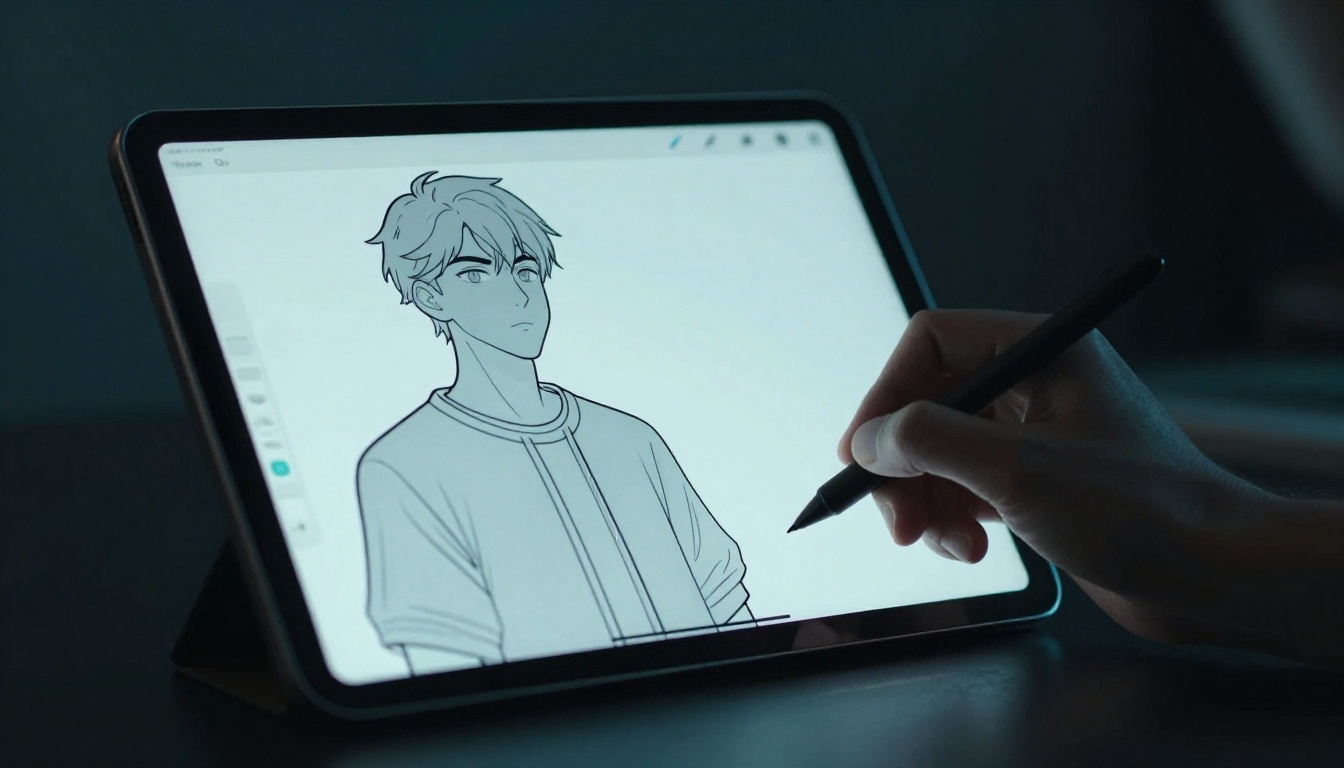
Ever shaded a digital drawing only to watch your colors bleed outside the lines? You add depth with shadows and highlights, but now you face hours of erasing messy spills. Frustrating, right?
Clipping masks and alpha lock fix that problem fast. Clipping masks make an upper layer stick to the shape of the layer below it. Alpha lock keeps you painting only on existing pixels in one layer. Both tools deliver clean shading without cleanup. You’ll speed up your workflow and get pro results in apps like Procreate, Photoshop, or Clip Studio Paint.
This guide shows you prep steps, detailed how-tos for each method, smart comparisons, and tips to avoid pitfalls. By the end, you’ll shade inside lines like a seasoned artist. Let’s build that strong foundation first.
Prep Your Line Art for Shading Success
Solid line art sets up easy shading. Weak lines lead to leaks later. Start with clean, closed shapes on a dedicated layer. This non-destructive approach lets you tweak without starting over.
Pressure-sensitive brushes help create natural thickness. Set opacity to 100% for bold edges. Smoothing tools reduce wobbles. Import scans? Boost contrast first, then desaturate for sharp blacks.
Layer setup matters too. Name them clearly, like “Lines” or “Base.” Group related ones in folders. These habits prevent confusion when you clip or lock.
Draw or Import Crisp Line Art
Grab an inking brush and sketch on a fresh layer. Enable stabilization for steady strokes. Aim for fully closed outlines; gaps cause shading spills.
For scanned art, open in your app. Use levels to darken lines and remove grays. Desaturate if colors linger. Merge multiple line layers into one. Closed paths ensure masks and locks work perfectly.
Test closure by filling the shape with color. No leaks? You’re ready.
Organize Layers Like a Pro
Rename your line layer “Lines.” Add a “Base Color” layer below it. Fill that with a flat hue using the bucket tool.
Set lines to multiply blend mode for clean overlaps. Create a group folder called “Shading.” Place it above base color but below lines. Now you clip new layers inside the group.
This structure keeps things tidy. You edit shadows without touching lines.
Shade Inside Lines Effortlessly with Clipping Masks
Clipping masks shine for layered shading. They confine paint to the layer below. No erasing needed. Build depth with stacks of shadows, midtones, and lights.
Create a new layer above lines. Fill with base color or start empty. Right-click and select “Create Clipping Mask.” In Procreate, drag the layer down with two fingers. Paint now stays inside lines.
Use multiply for shadows. Add overlay for highlights. Stack layers for cel-shading or soft gradients.
Create Your First Clipping Layer
Select your lines layer. Hit Cmd/Ctrl + Shift + N for a new layer. Clip it via the menu or gesture.
Pick a soft brush. Stroke a shadow. Colors hug the lines tight. No spills. Adjust opacity to blend naturally.
Undo with Cmd/Ctrl + Z if needed. This method saves time over manual masks.
Layer Multiple Shades with Clips
Duplicate your base clipping layer three times. Name them “Shadows,” “Midtones,” “Highlights.”
Paint darks on shadows with multiply. Midtones get softer browns. Highlights use a bright yellow at low opacity.
Add a rim light layer for edges. Tweak blend modes per layer. For a face, curve shadows under the jaw first. Then build up cheeks.
Results look polished fast.
Master Alpha Lock for On-the-Fly Shading Control
Alpha lock suits single-layer work. It protects transparent areas so paint stays put. Toggle it on for quick edits.
Fill your base color layer under lines. Double-tap the layer thumbnail in Procreate; a lock icon appears. In Photoshop, click the transparency lock. Paint only hits colored pixels.
Great for sketches or mobile. Fewer layers mean simpler files.
Turn On Alpha Lock in Seconds
Prep your base layer. Double-tap or check the lock option. Test with a bold stroke outside lines. Nothing happens there.
Paint shadows freely inside. Turn off to add new areas. On again for safety.
Build Complex Shades Layer by Layer
Duplicate the base for variations. Alpha lock each. Shade one for cool tones, another for warms.
Blend with low opacity brushes. Use dodge for lights. This mimics traditional painting.
Clipping Masks vs Alpha Lock: Choose Wisely for Your Style
Clipping offers flexibility. Stack endless layers without mess. Alpha lock keeps it simple on one layer.
Clips excel in complex pieces. Alpha suits fast sketches.
| Feature | Clipping Masks | Alpha Lock |
|---|---|---|
| Layers Needed | Multiple | Single |
| Edit Ease | Non-destructive | Quick toggle |
| Best For | Detailed art | Mobile/sketches |
| File Size | Larger | Smaller |
Clips organize for teams. Alpha speeds solo work.
Scenarios Where One Shines Over the Other
Use clips for animations; edit layers easily. Alpha works on phones with layer limits.
For portraits, clips handle rim lights best. Sketches? Alpha keeps it light.
Mix them: alpha base, clips on top.
Pro Tips and Mistakes to Dodge for Flawless Results
Soft airbrushes create smooth gradients inside masks. Color dodge pops highlights. Shift hues for mood changes.
Clip textures for grit. Order layers right: shadows bottom, lights top.
Boost Your Shading with Blend Modes and Brushes
Multiply darkens shadows naturally. Overlay adds contrast. Custom stipple brushes add texture via clips.
Gradient tools fill masked areas even. Experiment in a test file.
Avoid These Rookie Errors
Forget clipping? Colors spill everywhere. Fix with undo history.
Low-res lines leak; upscale first. Wrong layer masks nothing.
Overdo shadow saturation; desaturate for realism.
Practice fixes bad habits quick.
Master clean lines and these tools, and your shading stays perfect every time. Clipping masks build depth effortlessly. Alpha lock handles quick fixes. Pick based on your project.
Grab your tablet now. Try both on a simple face. Share your before-and-after in the comments. What app do you use most?
Subscribe for more art tips and grab my free shading cheat sheet. Your illustrations gain pro polish today.