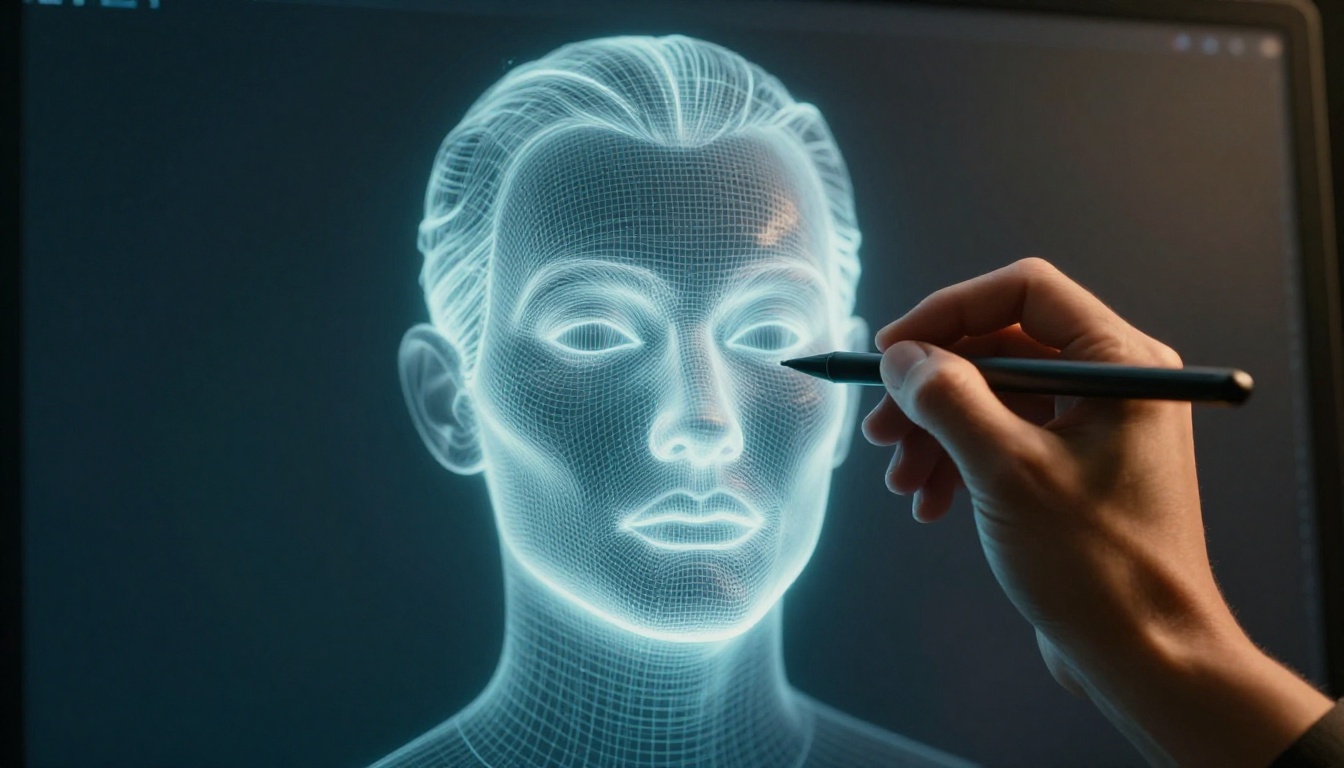
You spend hours sketching a portrait or character design. Then one wrong proportion ruins it all: eyes sit uneven, arms stretch too long, or the torso twists awkwardly. These slips make your art look off, even if the rest shines.
Photoshop’s Liquify and Transform tools fix that fast. They let you adjust sizes, shapes, and poses without starting over. You will learn step-by-step how to use them here, with examples and tips for smooth results.
Grab your file now. Follow along as we start with proportions, move to reshaping, and combine both for pro fixes.
Fix Wonky Proportions Fast with the Transform Tool
The Transform tool handles big changes first. You access it with Free Transform by pressing Ctrl+T (Cmd+T on Mac). It scales, rotates, skews, or warps layers or selections without destroying pixels.
Use it for gross errors like mismatched limb lengths or bad angles. Always work on a duplicate layer. Hold Shift to keep proportions as you drag corners. Hold Alt to scale from the center.
This sets a solid base. Then Liquify adds finesse later. Big adjustments stay clean this way.
Scale and Rotate Limbs That Look Too Long or Short
Start with a limb that hangs wrong. Select the arm layer or lasso the area tightly.
Press Ctrl+T to enter Free Transform. Drag a corner handle while holding Shift. The arm shrinks or grows evenly.
Next, hover outside a corner until you see the rotate cursor. Drag to match the body’s angle. For example, human arms reach about three-quarters torso length. Check that ratio now.
Commit by hitting Enter. If it distorts, undo and try again. Over-scaling squashes realism, so go slow.
Real arms dangle mid-thigh. Legs hit ground straight. These quick tweaks match anatomy basics.
Skew and Distort for Natural Body Poses
Slouchy shoulders need skew. Enter Free Transform on the torso layer. Drag side handles to slant one way.
For twists, switch to Edit > Free Transform > Distort. Pull corners independently. A curved spine gets a gentle S-bend this way.
Try Warp mode next (Edit > Free Transform > Warp). It shows a mesh grid. Drag points to pull knees forward or arch backs realistically.
Duplicate the layer first. Flip it horizontally (Edit > Transform > Flip Horizontal). Overlay at 50% opacity to check symmetry. Adjust until both sides match.
Poses feel alive now. Bodies move naturally instead of stiff.
Use Perspective and Warp for Depth in Figures
Foreshortening trips everyone up. Hands look huge up front. Select the hand layer and go to Free Transform > Perspective.
Pull top corners in. The hand shrinks into depth. Hold Alt for center-based changes.
Warp mode shines for elbows or knees. Adjust the grid to bend joints right. Place a low-opacity reference photo underneath.
Dynamic poses pop. Figures gain three dimensions. Practice on simple poses first.
Reshape Bulges and Contours Effortlessly with Liquify
Liquify refines after Transform. Go to Filter > Liquify or Shift+Ctrl+X. Convert your layer to a Smart Object first for non-destructive edits.
Key brushes include Forward Warp to push pixels, Pucker to shrink, and Bloat to expand. Set brush size to match the area, like 100-300 pixels. Pressure at 40-60 gives control.
Face-Aware Liquify auto-detects eyes and jaws in portraits. It speeds portrait fixes. Use it after rough proportions.
Subtle strokes mimic sculpting clay. Skin and muscles blend smooth.
Push and Pull Muscles and Curves with Forward Warp
Duplicate to Smart Object. Enter Liquify.
Pick Forward Warp brush. Size it to the bulge, say thigh or belly. Stroke lightly outward to enlarge calves or inward to flatten fat.
Think of pushing soft clay. Multiple passes build shape. For a thigh gap, nudge inner edges apart.
Use Reconstruct tool (hotkey R) to dial back too much. It smooths reversals.
Shoulders bulk up fast. Hips curve right. Anatomy feels balanced.
Shrink Bumps or Plump Hollows Using Pucker and Bloat
Double chins shrink with Pucker (hotkey S). Circle the area and click-drag inward. Density at 50% prevents harsh pulls.
Skinny cheeks fill with Bloat (hotkey B). Stroke outward gently. Flow at 50% avoids blobs.
In Face tool, slide eye spacing or jaw width. Hair stays safe.
Mask areas with Freeze (hotkey F). Paint over eyes before pulling noses. Protect details.
Contours match real bodies now. Faces look sculpted, not pinched.
Smooth Everything Out with Turbulence and Advanced Brushes
Turbulence (hotkey Anc) fixes rough skin after changes. Brush over muscles for organic texture.
Twirl (hotkey R) swirls hair or cloth folds that hide anatomy. Light strokes add flow.
Freeze Mask locks eyes or backgrounds. Thaw (hotkey D) releases them later.
Reconstruct All resets fully. Build in low-strength passes. Zoom for details.
Edits blend seamless. Art gains polish.
Combine Both Tools for Flawless Anatomy Overhauls
Transform sets proportions. Liquify shapes details. Stack them on Smart Objects to tweak anytime.
Create layer comps (Window > Layer Comps) for before/after views. Non-destructive masking cleans edges.
A long-neck portrait with wide hips shows the power. Gross fixes first, then finesse.
Iterations beat perfection on try one. Ruler tool (I key) measures ratios.
Step-by-Step Full Body Correction Workflow
Pick an image: asymmetric face, thin arms.
- Duplicate to Smart Object.
- Ctrl+T on head. Scale down 10% proportionally.
- Filter > Liquify. Forward Warp jawline sharper.
- Ctrl+T on arms. Rotate and shorten to torso match.
- Liquify biceps fuller. Pucker triceps defined.
- Commit. Flatten preview layer to check.
Ruler confirms arm span equals shoulder width. Repeat as needed.
Keep Edits Invisible with Layer Masks and Blending
Output Liquify to new layer. Add layer mask (black to hide).
Paint white softly on edges. Clone Stamp (S) fills seams.
Curves layer matches lighting. Flip canvas (F) spots wonky sides.
Export PSD versions. Changes stay editable.
Fixes vanish into the art. Realism holds.
Pro Tips to Avoid Mistakes and Speed Up Your Fixes
Open reference photos always. Grids (View > Show > Grid) guide ratios.
Practice on free stock figures. Shortcuts speed you: V moves, Ctrl+T transforms.
Pitfalls hurt: excess Liquify blurs details. Transform sans Shift warps badly.
Photoshop 2026 adds smarter Face Liquify. It predicts common fixes.
Other apps like GIMP mimic this. Core ideas transfer.
Does it work on photos? Yes, portraits too. Experiment freely.
Master Anatomy Fixes and Level Up Your Art
Transform nails proportions. Liquify perfects shapes. Together, they turn amateur slips pro.
Your portraits and characters gain life instantly. Practice these, and anatomy feels natural.
Open Photoshop today. Fix that file. Share your before/after in comments. What error trips you most?