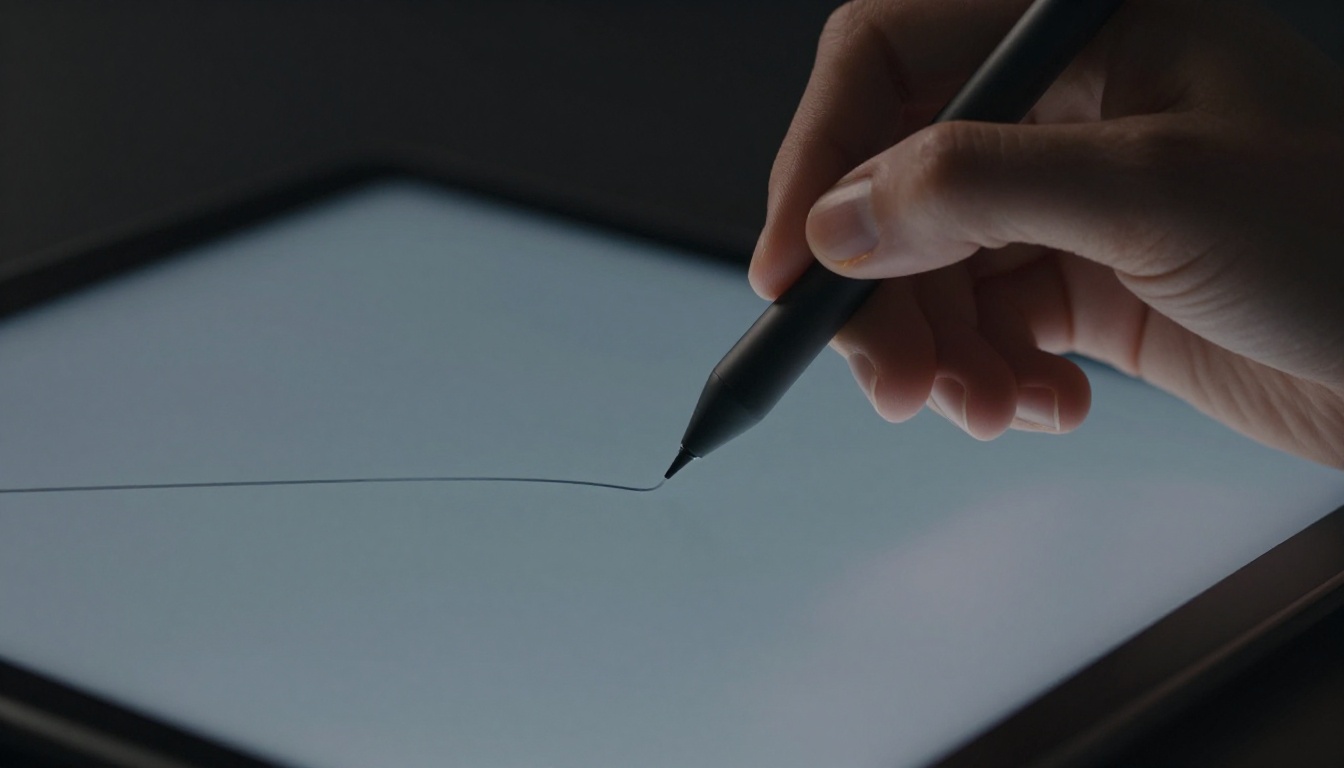
Shaky lines on your tablet ruin sketches, even after hours of practice. You draw what feels like a straight stroke, but it wobbles on screen. Brush stabilization fixes that. This feature in Clip Studio Paint smooths your lines in real time. It acts like a steady hand guiding your pen.
Default settings help, but they don’t fit every style. You sketch fast for thumbnails or slow for detailed inking. Customize brush stabilization to match your speed. You’ll get smooth clean lines without lag or odd curves. This post covers the basics, how to access it, tweak levels, and bonus tips. By the end, your lineart looks pro.
What Brush Stabilization Does and Why Customize It
Brush stabilization smooths strokes by averaging your pen’s direction. It reduces hand shakes and tablet jitter. Think of it as training wheels for your lines. The software predicts your path and straightens it on the fly.
Default settings work for basic use. However, they often feel off. Fast artists get lag. Slow ones see too much smoothing. Customize because it matches your habits. You ink faster with confidence. Less erasing means more time creating.
Benefits stack up. Inking speeds up by 30% for many users. Lineart stays crisp without redrawing. You build muscle memory over time. Stock sliders include stabilization from 0 to 100, pulled length, and afterimage. Tweak them for your brush.
The Simple Mechanics That Make Lines Straight
Stabilization creates a prediction curve. It looks at your last strokes and guesses the next ones. A delay follows, so the line catches up smooth.
This works like autocorrect for drawing. Beginners gain straight lines quick. Pros refine subtle control. High settings (over 40) lock in precision. Low ones (under 10) keep natural flow.
Pros of high stabilization include perfect edges for manga panels. Cons involve lag during speed changes. Low settings shine in gestures. They feel responsive, but wobbles creep in.
When Stock Settings Fail and Custom Wins
Stock options assume average speed. Fast gesture sketches need low stabilization. Detailed panels demand high. A comic artist might use 25 for roughs and 60 for finals.
One artist shared her switch cut inking time in half. Defaults caused hooks at stroke ends. Custom pulled length fixed it. You see the same in varied styles.
Accessing and Enabling Stabilization in Clip Studio Paint
Open Clip Studio Paint and pick a brush tool. Head to the Sub Tool palette on the right. Click the brush name for details. Toggle stabilization on if off.
Sliders appear under Tool Property. Set stabilization to your start value, say 20. Test a line. Adjust as needed. Save changes to avoid resets.
Photoshop has a smoothing slider. Procreate calls it streamline. CSP offers more options like pulled length. Save custom brushes for quick access.
- Select pen or brush tool.
- Open Sub Tool Detail palette (gear icon if hidden).
- Find Stabilization section.
- Slide to enable and set value.
- Draw test stroke.
- Edit brush via cogwheel for presets.
If sliders vanish, check tool properties view. Reset layout via Window menu.
Locate It Fast in the Sub Tool Detail Palette
The palette sits right side by default. Tool Property shows sliders first. Stabilization sits near top with numeric box. Drag slider or type value.
Pulled length follows below. Afterimage toggles last. Resize palette if cramped. Pin it open for workflow.
Lock In Your Settings for Repeat Use
Duplicate the brush first. Right-click in Sub Tool list. Choose Duplicate Sub Tool. Tweak new one fully.
Register to preset palette. Drag or right-click Register to Preset. Name it “Smooth Inker 30”. Access next session instant.
Tweak Stabilization Levels for Your Unique Stroke
Start with a blank canvas. Draw straight lines at your normal speed. Watch for wobbles or lag. Bump stabilization until smooth.
Casual sketches suit 5 to 10. Precise inking needs 20 to 40. Pair with pressure sensitivity. Light taps need less smoothing.
Test per style. Lineart loves mid-range. Painting brushes take lower for organic feel. Iterate: draw, adjust, redraw.
Practice prompt: Fill a page with 10cm lines. Vary speed. Note best slider each time.
Test Low Levels for Speedy Loose Lines
Range 1 to 10 keeps natural bounce. Thumbnails and gestures flow free. You retain pen feel.
Pros mean quick ideation. Cons show minor shakes on curves. Great for concept art.
Crank It Up for Pinpoint Clean Inking
Over 20 delivers razor edges. Manga outlines stay true. Balance lag by slowing slightly.
Use 40 to 60 for finals. Tablet pressure adds taper. Avoid 100; it straightens too much.
Blend Pulled Length for Dynamic Control
Pulled length extends stroke ahead. Set 10 to 20 with stabilization 30. It anticipates turns.
Use for flowing hair or cloth. Combines with stab for less delay. Test on S curves.
Extra Polish and Fixes for Flawless Lines
Afterimage previews your smoothed path. Toggle on for confidence. Adjust opacity low.
Hardware matters. Turn off pen tilt in settings. Lighter brushes run smoother on CPU.
Common mistake: High stab curves straights. Drop it. Ignore pulled length alone; pair always.
Layer test: Draw at 50% opacity. Merge to check. Pro hack: Assign hotkey to toggle.
Preview Strokes with Afterimage Magic
Enable afterimage in Tool Property. Ghost line trails your pen. Fade opacity to 20%.
See predictions live. Builds trust in settings. Turn off for final passes.
Dodge Lag and Over-Smoothing Traps
Lag hits on complex brushes. Switch to basic pen. Lower resolution temporary.
Over-smoothing stiffens art. Dial back to 15. Restart app if sticky.
Daily Drills to Make It Second Nature
Draw 20 straight lines, vary speed. Next, 20 circles. Finish with 20 wavy curves.
Track in sketchbook. Week two, drop drills to five minutes. Progress shows in all work.
Custom brush stabilization transforms shaky sketches into pro lineart. You access sliders easy, tweak for speed, and polish with previews. Practice daily locks it in.
Grab your tablet now. Test a custom brush on your next piece. Share your smooth lines in comments. What setting works best for you? Subscribe for more art tips. Your clean lines await.